Rx Ready Patient App Notifications
This topic is intended for Independent pharmacies only and is not applicable to Rexall pharmacies.
Once a prescription has been processed through the different Workflow queues set up at your pharmacy and is placed in the Pick Up/Delivery tile, a notification can be sent through the app and by email to notify the patient that their prescription is ready for pickup. This is possible even if the prescription was not submitted via the app as long as the patient is enrolled in the Patient App program at your pharmacy. Depending on your pharmacy's setup, this notification can be sent automatically or manually. The method by which these notifications are sent is configured in the Patient Folder.
There are some prescriptions that cannot have pickup notifications sent and will not appear in the Pick Up/Delivery tile if POS integration is OFF. Select the dropdown below to review these exceptions.
 Exceptions to Pickup Notifications
-
Prescriptions flagged as PFS, such as medication reviews
-
Prescriptions for drugs that have the Notifications flag OFF
-
Compliance Pack prescriptions
-
Methadone prescriptions
-
Non-retail prescriptions (i.e., prescriptions filled for patients in a non-retail group)
Setting the Auto-Send Preference
If your pharmacy only has the Data Entry queue enabled for Workflow or Lite Digital Workflow with Packaging, it is recommended that you turn Auto-Send OFF. Otherwise, if it is turned ON, pickup notifications will be sent before your pharmacy has a chance to package, check, and have the prescription ready for pickup.
The Auto-Send preference determines if pickup notifications are transmitted automatically from Propel Rx after a prescription completes the last step in Workflow.
To set the Auto-Send preference:
-
Select More (...) > Pharmacy.
-
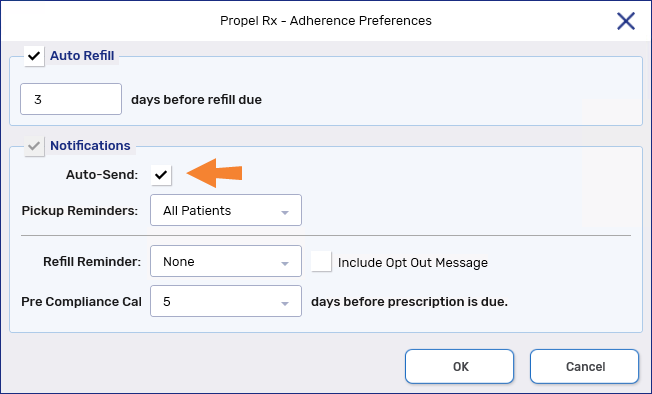
Select the Adherence button at the bottom. The Adherence Preferences window opens.
-
Under the Notifications section, do one of the following:
-
Select the Auto-Send checkbox to turn the preference ON. Pickup notifications will be sent automatically and cannot be sent manually.
-
Deselect the Auto-Send checkbox to turn the preference OFF. Pickup notifications can only be sent manually. This is the default setting.
-
-
Ensure the Pickup Reminders field is set to All Patients or Selected Patients.
The All Patients and Selected Patients options behave the same for Pickup Reminders sent through the Patient App program. Only patients that have accepted Pickup Reminders will receive pickup notifications.
-
Select OK.
-
Select Save.
-
Exit Propel Rx and relaunch it on all computers for the changes to take effect.
Setting Patient Notification Preferences for Patient App
For pickup notifications to be transmitted, the patient's and/or Caregiver's notification settings must be set accordingly. This can only be done after the patient and/or Caregiver is enrolled in the Patient App program.
To set up a patient for pickup notifications via the app:
-
Open the Patient Folder.
-
Select the Programs tab.
-
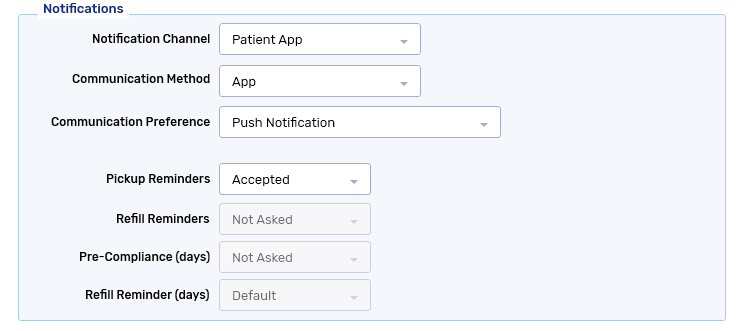
From the Notification Channel dropdown, select Patient App.
-
Ensure the Communication Method is set to App.
-
Ensure the Communication Preference is set to Push Notification.
-
Ensure the Pickup Reminder is set to Accepted.
-
Select Save.
Sending Pickup Notifications Manually for Patient App
For pharmacies with or without Propel POS integration, manual pickup notifications can be sent from the Pick Up/Delivery tile. This is possible if the Auto-Send preference is turned OFF. If Auto-Send is ON, pickup notifications can only be sent automatically after the prescription completes the last step in Workflow. You can send one pickup notification per prescription per day.
In Alberta, Saskatchewan, or Nova Scotia, if the Dispense Pickup preference is set to Dispense and the patient's notification channel is set to Patient App, prescriptions for the patient remain in the Pick Up/Delivery tile for three days after achieving a Picked Up status. This gives you a chance to send manual pickup notifications if needed.
-
If Auto-Send is OFF, during this three day period, pickup notifications can be sent using Rx Ready through the patient's chosen communication channel.
-
If Auto-Send is ON, Rx Ready is disabled. The pickup notification is sent automatically, and the prescription remains in the tile for three days.
-
If Dispense Pickup is set to POS or Manual, prescriptions vacate the Pick Up/Delivery tile immediately after achieving a Picked Up status.
To manually send a pickup notification via the app:
-
On the Workbench, select the Pick Up/Delivery tile.
-
Select one or more prescriptions for the patient.
Patient App prescriptions can be identified by their W or camera icon
 in the Pick Up/Delivery tile.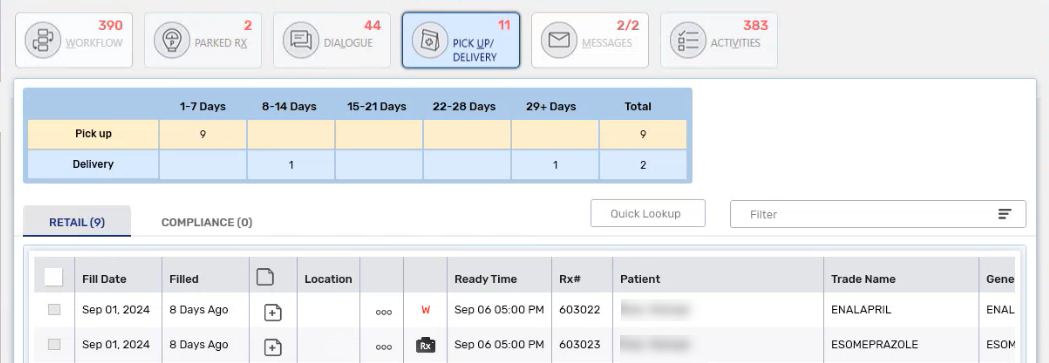
-
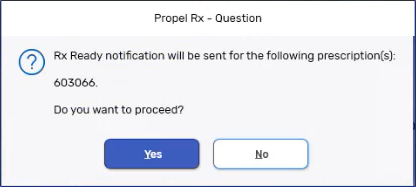
Select Rx > Rx Ready > Rx Ready Only. A validation prompt appears.
Third Party pays or patient pays amounts are NOT transmitted in the pickup notification.
-
Select Yes.
Propel Rx will check if the patient and their Caregiver(s) have notification preferences set up in their Patient Folder.
-
If the patient does not have notification preferences set up for the app but the Caregiver does, the pickup notification will be sent to the Caregiver's account.
-
If the patient and their Caregiver have pickup notification preferences set up for the app, both will receive the pickup notification.
-
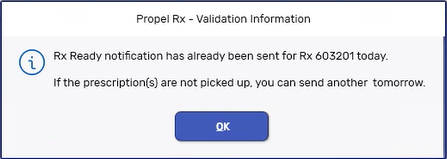
If a pickup notification was already sent for the prescription on the same day, a prompt appears to alert you of the fact. You must wait till the next day to send another pickup notification.
-
The W indicator in the Pick Up/Delivery tile changes colour from red to blue to indicate a pickup notification has been sent.
The date and time that the pickup notification was sent is recorded in the Patient Folder History tab.
Picking Up Patient App Prescriptions
For pharmacies with Propel POS integration, the status of the prescription on the app changes to Active once the prescription is sold at the till.
For pharmacies without Propel POS integration, the prescription remains in the Pick Up/Delivery tile for 28 days before being automatically removed. After 28 days, the status of the prescription changes to Active on the app. The Pick Up button can be used to manually pick up and remove these prescriptions from the grid. If the prescription has already been picked up (e.g., if Dispense Pickup is set to Dispense in Alberta, Saskatchewan, and Nova Scotia), the Pick Up button is disabled.
There is a two-minute delay between sending the pickup notification and the notification being received on the app. If you need to set the prescription to picked up manually (using the Pickup button), wait at least 2 minutes after sending the notification to do so. Otherwise, the pickup notification will be cancelled.